 Miaoborui查看:125 回复:6 评论:7 创建时间:2022-11-10T10:29:47
用户:Miaoborui查看:125 回复:6 评论:7 创建时间:2022-11-10T10:29:47
好的,我也不过多赘述了直接开始:
搜索vscode
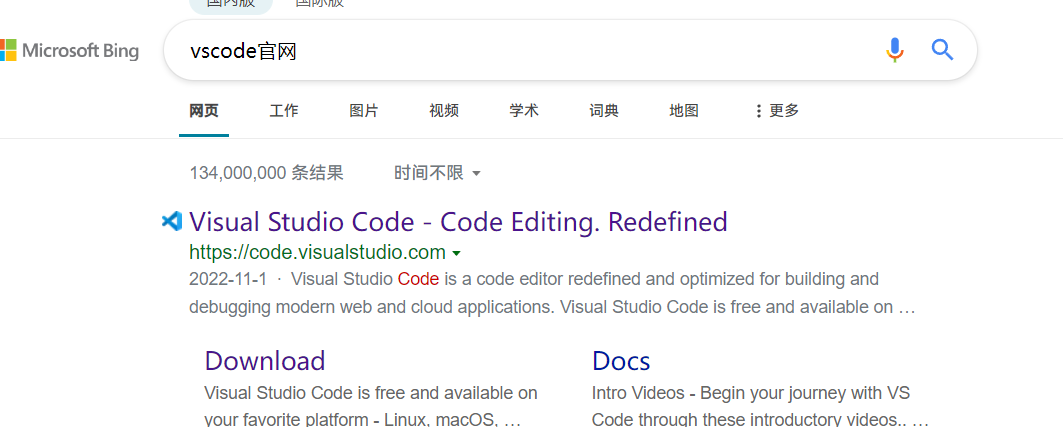
选择下载win喵x
安装建议按需求来(我全都要
打开发现是English
有些人打开可能直接提示安装中文,但有些人没有所以我还是要发一下方法
点击扩展按钮
搜索Chinese
完事重启vscode
接着安装c++扩展
重启
下载MinGW喵
这和vscode一样搜索
安装建议c盘(划掉
打开一个你写c++的文件夹
右键通过vscode打开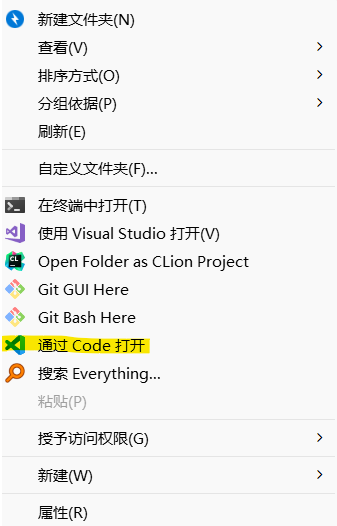
打开后创建一个文件夹取名为.vscode
创建两个文件分别为launch.json和tasks.json
在launch.json复制一段代码
{
    // 使用 IntelliSense 了解相关属性。
    // 悬停以查看现有属性的描述。
    // 欲了解更多信息,请访问: https://go.microsoft.com/fwlink/?linkid=830387
    "version": "0.2.0",
    "configurations": [
        {
            "name": "g++.exe - 生成和调试活动文件",
            "type": "cppdbg",
            "request": "launch",
            "program": "C:\\Windows\\System32\\cmd.exe",
            "args": [
                "/C",
                "${fileDirname}\\${fileBasenameNoExtension}.exe",
                "&",
                "echo.",
                "&",
                "pause"
            ],
            "stopAtEntry": false,
            "cwd": "${fileDirname}",
            "environment": [],
            "externalConsole": true,
            "MIMode": "gdb",
            "miDebuggerPath": "C:\\mingw喵\\bin\\gdb.exe",
            "setupCommands": [
                {
                    "description": "为 gdb 启用整齐打印",
                    "text": "-enable-pretty-printing",
                    "ignoreFailures": true
                },
                {
                    "description": "将反汇编风格设置为 Intel",
                    "text": "-gdb-set disassembly-flavor intel",
                    "ignoreFailures": true
                }
            ],
            "preLaunchTask": "task g++"
        }
    ]
}
可以把路径改一下改成你自己的minGW的路径
这个是直接安装C盘
然后是tasks.json
复制一下代码
{
    "tasks": [
        {
            "type": "cppbuild",
            "label": "C/C++: g++.exe 生成活动文件",
            "command": "C:\\mingw喵\\bin\\g++.exe",
            "args": [
                "-fdiagnostics-color=always",
                "-g",
                "${file}",
                "-o",
                "${fileDirname}\\${fileBasenameNoExtension}.exe",
                "-fexec-charset=GBK"
            ],
            "options": {
                "cwd": "${fileDirname}"
            },
            "problemMatcher": [
                "$gcc"
            ],
            "group": {
                "kind": "build",
                "isDefault": true
            },
            "detail": "调试器生成的任务。"
        },
        {
            "type": "cppbuild",
            "label": "task g++",
            "command": "C:\\mingw喵\\bin\\g++.exe",
            "args": [
                "-fdiagnostics-color=always",
                "-g",
                "${file}",
                "-o",
                "${fileDirname}\\${fileBasenameNoExtension}.exe",
                "-fexec-charset=GBK"
            ],
            "options": {
                "cwd": "${fileDirname}"
            },
            "problemMatcher": [
                "$gcc"
            ],
            "group": "build",
            "detail": "编译器: C:\\mingw喵\\bin\\g++.exe"
        }
    ],
    "version": "2.0.0"
}
一样改一下路径
然后在复制一下测试代码
#include<bits/stdc++.h>
using namespace std;

int main(){
    cout<<"Hello World";
    return 0;
}
如果没事那么你就成功了!!
(如果有问题可以在评论区发一下,建议看完再做!!!)
Miaoborui对了设置也可以改一下增强手感
点击左下角设置按钮,再点击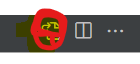
黏贴
{
    "synthwave84.disableGlow": true,
    "files.autoSave": "afterDelay",
    "editor.fontSize": 20,
    "editor.formatOnSave": true,
    "editor.fontFamily": "JetBrains Mono Regular, 'SimHei', JetBrains Mono Regular",
    "editor.fontLigatures": "JetBrains Mono Regular",
    "editor.semanticTokenColorCustomizations": {},
    "C_Cpp.clang_format_style": "{BasedOnStyle: Chromium, IndentWidth: 4}",
    "editor.codeActionsOnSave": {},
    "workbench.list.喵oothScrolling": true,
    "editor.喵oothScrolling": true,
    "editor.cursorSmoothCaretAnimation": true,
    "editor.cursorBlinking": "喵ooth",
    "editor.formatOnPaste": true,
    "editor.formatOnType": true,
    "window.dialogStyle": "custom",
    "debug.showBreakpointsInOverviewRuler": true,
    "workbench.iconTheme": "material-icon-theme",
    "C_Cpp.errorSquiggles": "Enabled",
    "debug.console.fontSize": 15,
    "security.workspace.trust.untrustedFiles": "open",
    "vsicons.dontShowNewVersionMessage": true,
    "editor.wordWrap": "on",
    "workbench.colorTheme": "JetBrains Darcula Theme",
    "settingsSync.ignoredExtensions": [],
    "tabnine.experimentalAutoImports": true,
    "files.autoSaveDelay": 1,
    "terminal.integrated.profiles.windows": {
        "PowerShell": {
            "source": "PowerShell",
            "icon": "terminal-powershell"
        },
        "Command Prompt": {
            "path": [
                "${env:windir}\\Sysnative\\cmd.exe",
                "${env:windir}\\System32\\cmd.exe"
            ],
            "args": [],
            "icon": "terminal-cmd"
        },
        "Git Bash": {
            "source": "Git Bash"
        },
        "Windows PowerShell": {
            "path": "C:\\WINDOWS\\System32\\WindowsPowerShell\\v1.0\\powershell.exe"
        }
    },
    "terminal.integrated.defaultProfile.windows": "Command Prompt",
    "terminal.integrated.cursorStyle": "line",
    "editor.codeLensFontFamily": "SimHei",
    "errorLens.onSaveTimeout": 1,
    "workbench.editorAssociations": {
        "*.lnk": "default"
    },
    "files.autoGuessEncoding": true,
}
对了建议安装jet的字体老好看了
点赞0
评论
喵是喵
s以及
m和
和去掉
我感觉firacode也挺好看
 小萝卜cXsQ
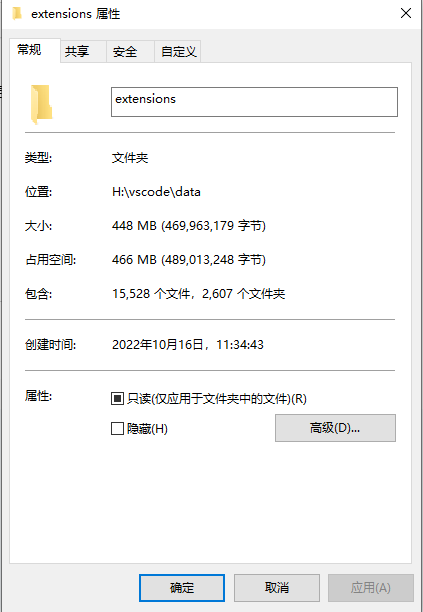
vscode本身小,插件一点也不小,建议更改插件安装路径
自从我装了vscode,为了让它能编写所有我知道的编程语言,还有用起来更舒服,我装了20个插件
结果如图,插件比vscode自己都大了
点赞0
评论
以前装过50个插件,放c盘直接爆红,放到其他盘c盘立刻多出来2G空间