 wsz1881查看:0 回复:0 评论:0 创建时间:2021-04-19T11:07:07
用户:
【作品展示】
【作品介绍】
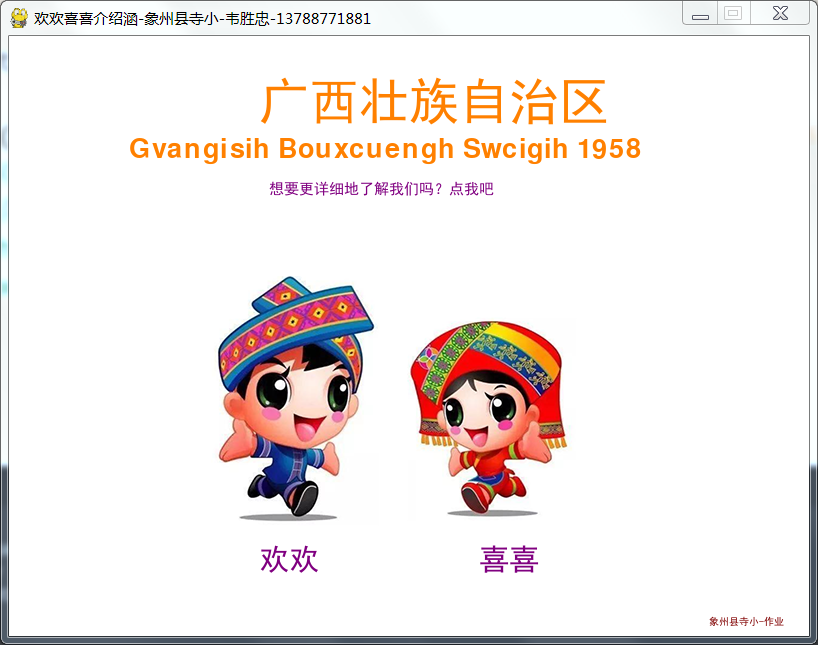
作业-欢欢喜喜介绍涵
【作品源代码】
# 韦胜忠作业
import pygame
import color
import time
import sys
import wordcloud #导入词云库
import jieba  #导入词云库
import imageio#导入imageio
mk1=imageio.imread('欢欢p.png')#读取图片轮廓,白底、透明
mk2 = imageio.imread('喜喜p.png')
#创建词云对象
wc1=wordcloud.WordCloud(mask=mk1,background_color='white',font_path='simhei.ttf')
wc2 = wordcloud.WordCloud(mask=mk2, background_color='white', font_path='simhei.ttf')
#读取文本内容
txt = open('欢欢.txt', 'r', encoding='utf-8').read()
txt=jieba.lcut(txt)#使用lcut分词
txt=' '.join(txt)#使用join拼接
wc1.generate(txt)#设置词云图参数
wc1.to_file('hhc.png')#生成词云图片
wc2.generate(txt)
wc2.to_file('xxc.png')

########游戏窗口#############

screen = pygame.display.set_mode((800, 600))  # 创建游戏窗口
screen.fill('white')
pygame.display.set_caption('欢欢喜喜介绍涵-象州县寺小-韦胜忠-13788771881')  # 创建游戏窗口标题
hh = pygame.image.load('欢欢p.png')  # 加载图片
xx = pygame.image.load('喜喜p.png')
hhc = pygame.image.load('hhc.png')
xxc = pygame.image.load('xxc.png')
x1 = 0   #设置图片坐标
y1 = 240
x2 = 600
y2 = 170

###初始化pygame
pygame.init()
#定义字体对象,None表示系统默认字体
font1 = pygame.font.SysFont(None, 40)
font2 = pygame.font.SysFont('simhei', 50)
font3 = pygame.font.SysFont('simhei', 30)
font4 = pygame.font.SysFont('simhei', 30)
font5 = pygame.font.SysFont('simhei', 15)
font6 = pygame.font.SysFont('simhei', 30)
font7=pygame.font.SysFont('simhei',10)

#设置文字属性
w1 = font1.render('Gvangisih Bouxcuengh Swcigih 1958', 1, (255, 128, 0))
w2 = font2.render('广西壮族自治区', 1, (255, 128, 0))
w3 = font3.render('欢欢', 1, (128, 0, 128))
w4 = font4.render('喜喜', 1, (128, 0, 128))
w5 = font5.render('想要更详细地了解我们吗?点我吧', 1, (128, 0, 128))
w6 = font6.render('广西欢迎您', 1, (128, 0, 128))
w7 = font7.render('象州县寺小-作业', 1, (128, 0, 0))

#设置部分字体坐标
y3 = 700
y4 = 700
x5 = 800

num = 0 # 显示第几副画
#设置音乐
pygame.mixer.init()
pygame.mixer.music.set_volume(0.5)
pygame.mixer.music.load('民歌.mp3')
pygame.mixer.music.play()

#主循环
while 1:

    #获取鼠标坐标
    mouse_x,mouse_y = pygame.mouse.get_pos()
    #遍历事件列表
    for event in pygame.event.get():
        #判断是否点击破关闭
        if event.type == pygame.QUIT:
            sys.exit()#退出系统
            #判断是否按下鼠标事件
        elif event.type == pygame.MOUSEBUTTONDOWN:
                #判断是否按下鼠标左键
                if event.button == 1:
                    #判断鼠标所点区域是否在两个角色之间
                    if mouse_x > 200 and mouse_x < 570 and mouse_y > 170 and mouse_y < 400:
                       num = num+1

    #显示第一副画面
    if num == 0:
        #开始绘图
        screen.fill('white')#填充背景色为白色


    #绘制文字对象
        screen.blit(w1, (120, 100))
        screen.blit(w2, (250, 40))
        screen.blit(w3, (250, y3))
        screen.blit(w4, (470, y4))
        screen.blit(w5, (x5, 145))
        screen.blit(hh, (x1, y1))
        screen.blit(xx, (x2, y2))
        screen.blit(w7, (700, 580))
        #绘制文字后,改变文字的坐标
        if x1>=200:
            x1=200
        if y3 >= 510:
            y3 = y3-2
        if y4 >= 510:
            y4 = y4-2
        if x5 >= 130:
            x5 = x5-3

        if x1 <= 200:
           x1 = x1+0.6
        if x2 > 400:
           x2 = x2-1.8
        if y2 > 280:
           y2 = 280
        x1=x1+2
        y2 = y2+1

    #显示第二个界面
    if num == 1:
        #绘制文字对象
        screen.blit(hhc, (x1, y1))
        screen.blit(xxc, (x2, y2))
        screen.blit(w1, (120, 100))
        screen.blit(w2, (250, 40))
        screen.blit(w3, (250, y3))
        screen.blit(w4, (470, y4))
        screen.blit(w6, (300, 185))
        screen.blit(hhc, (x1, y1))
        screen.blit(xxc, (x2, y2))
    #刷新游戏界面
    pygame.display.update()
    #设置延迟,防止刷新过快
    pygame.time.delay(15)
【提示】
部分含有Python第三方库相关内容的作品,在海龟编辑器网页端无法运行哦!如遇到这种情况,可以打开下面的链接,下载海龟编辑器客户端:
https://python.codemao.cn