BCM墨水瓶查看:159 回复:2 评论:0 创建时间:2021-02-13T08:11:29
用户:
【作品展示】
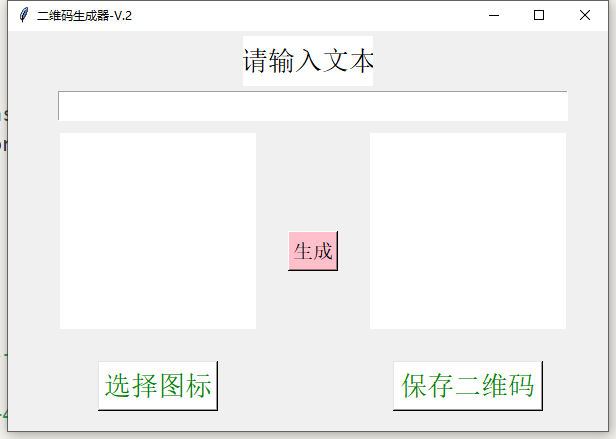
【作品介绍】
二维码生成器-V.2输入文本即可生成二维码
【作品源代码】
from tkinter import *
from tkinter.filedialog import *
from PIL import Image, ImageTk
import qrcode


def openfile():

    global filename, image_name

    filename = askopenfilename()

    image_name = Image.open(filename)

    image_name = image_name.resize((200, 200), Image.ANTIALIAS)  # 缩放图片

    im_root = ImageTk.PhotoImage(image_name)  # 预设打开的图片

    canvas1.create_image(100, 100, image=im_root)  # 嵌入预设的图片

    canvas1.place(x=50, y=100, width=200, height=200)

    root.mainloop()


def creat():

    global img

    qr = qrcode.QRCode(

        version=2,

        error_correction=qrcode.constants.ERROR_CORRECT_Q,

        box_size=10,

        border=1)

    url = entry1.get()

    qr.add_data(url)

    qr.make(fit=True)

    img = qr.make_image()

    img = img.convert("RGBA")

    icon = image_name

    icon = icon.convert("RGBA")

    imgWight, imgHeight = img.size

    iconWight = int(imgWight / 3)

    iconHeight = int(imgHeight / 3)

    icon = icon.resize((iconWight, iconHeight), Image.ANTIALIAS)

    posW = int((imgWight - iconWight) / 2)

    posH = int((imgHeight - iconHeight) / 2)

    img.paste(icon, (posW, posH), icon)

    img1 = img.resize((200, 200), Image.ANTIALIAS)

    im_root = ImageTk.PhotoImage(img1)  # 预设打开的图片

    canvas2.create_image(100, 100, image=im_root)  # 嵌入预设的图片

    canvas2.place(x=360, y=100, width=200, height=200)

    root.mainloop()


def savefile():

    pathname = asksaveasfilename(
        defaultextension='.png', initialfile='新的二维码.png')

    img.save(pathname)


root = Tk()

root.title("二维码生成器-V.2")

root.geometry('600x400+400+100')

button1 = Button(root, text='选择图标', font=('宋体', 20),
                 fg='green', bg='white', command=openfile)  # 设置按钮

button2 = Button(root, text='保存二维码', font=('宋体', 20),
                 fg='green', bg='white', command=savefile)  # 设置按钮

button1.place(x=90, y=330, width=120, height=50)  # 显示按钮

button2.place(x=385, y=330, width=150, height=50)  # 显示按钮

label1 = Label(root, text='请输入文本', font=('宋体', 20),
               fg='black', bg='white')  # 设置组件

label1.place(x=235, y=5, width=130, height=50)

entry1 = Entry(root, font=('宋体', 20))  # 设置输入框

entry1.place(x=50, y=60, width=510, height=30)  # 显示组件

canvas1 = Canvas(root, width=300, height=300, bg="white")  # 创建画布

canvas2 = Canvas(root, width=300, height=300, bg="white")  # 创建画布

canvas1.place(x=50, y=100, width=200, height=200)

canvas2.place(x=360, y=100, width=200, height=200)

button = Button(root, text='生成', font=('宋体', 15),
                fg='black', bg='pink', command=creat)  # 设置按钮

button.place(x=280, y=200, width=50, height=40)  # 显示按钮

root.mainloop()
【提示】
部分含有Python第三方库相关内容的作品,在海龟编辑器网页端无法运行哦!如遇到这种情况,可以打开下面的链接,下载海龟编辑器客户端:
https://python.codemao.cn