 QBZ_查看:163 回复:10 评论:3 创建时间:2019-08-30T15:31:27
用户:QBZ_查看:163 回复:10 评论:3 创建时间:2019-08-30T15:31:27
【作品展示】
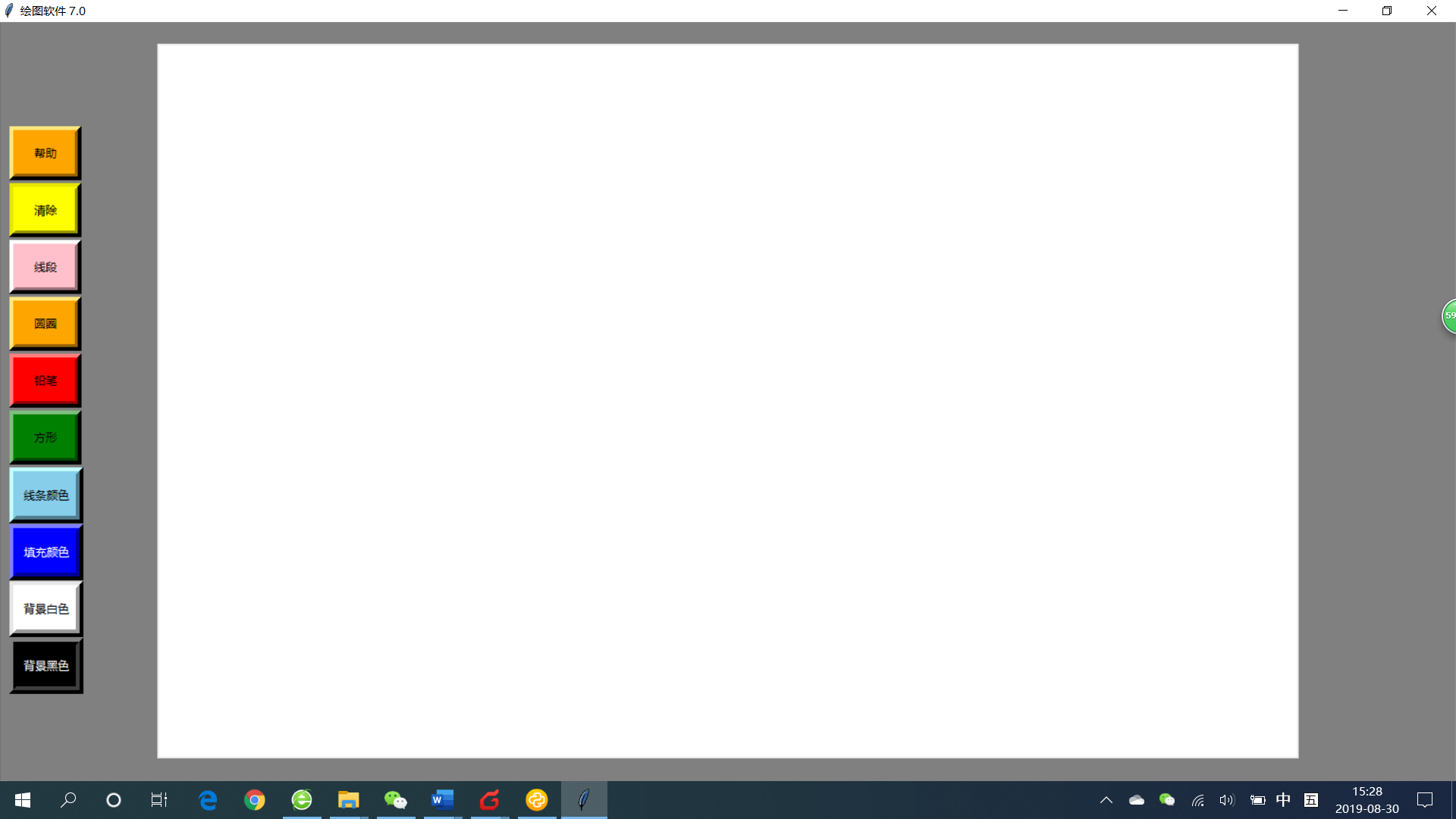
【作品介绍】
这是继之前以来的最新版本前一版本的地址喵o.cn/community/195369
代码如下:
【作品源代码】
from tkinter import*
from tkinter.colorchooser import*
from tkinter import messagebox


# 主程序
# 设置背景颜色
# 创建按钮和画布

window = Tk()
window.configure(background="gray", cursor="fleur", width=1000, height=1000)
window.title("绘图软件 7.0")
window.geometry("2000x2000")

instruction = Label(window, text="",
                    background="gray", cursor="shuttle",)
instruction.pack()

speak = Button(window, bg="orange", fg="black",
               text="帮助", cursor="fleur", bd="5px", activebackground="orange", relief="raised",
               width=8, height=2)
speak.pack()
speak.place(x=10, y=110)

BlackButton = Button(window, bg="black", fg="white",
                     text="背景黑色", cursor="fleur", bd="6px", relief="raised", width=8, height=2)
BlackButton.pack()
BlackButton.place(x=10, y=650)

whiteButton = Button(window, bg="white",
                     text="背景白色", cursor="fleur", bd="6px", relief="raised", width=8, height=2)
whiteButton.pack()
whiteButton.place(x=10, y=590)

fillButton = Button(window, bg="blue", fg="white", activebackground="blue",
                    activeforeground="white", text="填充颜色", cursor="gumby gumby", relief="raised",
                    bd="6px", width=8, height=2,)
fillButton.pack()
fillButton.place(x=10, y=530)

colorButton = Button(window, bg="skyblue", activebackground="skyblue",
                     text="线条颜色", cursor="gumby gumby", bd="6px", relief="raised",
                     width=8, height=2)
colorButton.pack()
colorButton.place(x=10, y=470)

rectButton = Button(window, bg="green", text="方形",
                    cursor="dotbox", bd="5px", relief="raised", width=8, height=2)
rectButton.pack()
rectButton.place(x=10, y=410)

lineButton = Button(window, bg="red",
                    text="铅笔", cursor="gumby gumby", bd="5px", relief="raised", width=8, height=2)
lineButton.pack()
lineButton.place(x=10, y=350)

circleButton = Button(window, bg="orange",
                      text="圆圈", cursor="circle", bd="5px", relief="raised",
                      width=8, height=2)
circleButton.pack()
circleButton.place(x=10, y=290)

explosiveButton = Button(window, bg="pink",
                         text="线段", cursor="gumby gumby", bd="5px", relief="raised",
                         width=8, height=2)
explosiveButton.pack()
explosiveButton.place(x=10, y=230)

clearButton = Button(window, bg="yellow",
                     text="清除", cursor="dotbox", bd="5px", width=8, relief="raised",
                     height=2)
clearButton.pack()
clearButton.place(x=10, y=170)

myCanvas = Canvas(window, width=1200, height=750,
                  cursor="spraycan", bg="white")
myCanvas.pack()

# 背景颜色


def Black(event):
    myCanvas.configure(bg="black")
    window.update()


BlackButton.bind("", Black)


def white(event):
    myCanvas.configure(bg="white")
    window.update()


whiteButton.bind("", white)

# 帮助
# 说明


def Help(event):
    introduction = Tk()
    introduction.withdraw()
    messagebox.showinfo(title='说明',
                        message='此为一个画图软件,灵感来自于人工智能————御眼重明,目前仍在开发阶段,现在版本为7 .0(点击确定继续)')
    messagebox.showinfo(title='说明',
                        message='用鼠标操控画笔,按住滑动便可画出图案,可以设置线条颜色和填充颜色,左边是形状按钮,还有背景颜色设置,点击便可画出不同的形状(点击确定开始)')


speak.bind("", Help)

# 改变画笔颜色的程序
myColor = "black"
myShape = "line"
myfill = "white"

# 定义x,y轴


def pen_down(event):
    global prevX
    global prevY
    prevX = event.x
    prevY = event.y


myCanvas.bind("", pen_down)

# 画线的程序


def draw(event):
    global prevX
    global prevY
    if myShape == "line":
        myCanvas.create_line(prevX, prevY, event.x, event.y, fill=myColor)
        prevX = event.x
        prevY = event.y


myCanvas.bind("", draw)


def pen_up(event):
    if myShape == "circle":
        myCanvas.create_oval(prevX, prevY, event.x,
                             event.y, outline=myColor, width=5, fill=myfill)
    if myShape == "rectangle":
        myCanvas.create_rectangle(
            prevX, prevY, event.x, event.y, outline=myColor, width=5, fill=myfill)
    if myShape == "explosive":
        myCanvas.create_polygon(prevX, prevY, event.x,
                                event.y, outline=myColor, width=5, fill=myfill)


myCanvas.bind("", pen_up)

# 改变颜色


def pick_color(event):
    global myColor
    myColor = askcolor()
    myColor = myColor[1]


colorButton.bind("", pick_color)


def pick_fill(event):
    global myfill
    myfill = askcolor()
    myfill = myfill[1]


fillButton.bind("", pick_fill)

# 清除画布的程序


def clear(event):
    myCanvas.delete(ALL)


clearButton.bind("", clear)


def set_line(event):
    global myShape
    myShape = "line"


lineButton.bind("", set_line)


def set_rect(event):
    global myShape
    myShape = "rectangle"


rectButton.bind("", set_rect)


def set_circle(event):
    global myShape
    myShape = "circle"


circleButton.bind("", set_circle)


def set_explosive(event):
    global myShape
    myShape = "explosive"


explosiveButton.bind("", set_explosive)

window.mainloop()
【提示】
部分含有Python第三方库相关内容的作品,在海龟编辑器网页端无法运行哦!如遇到这种情况,可以打开下面的链接,下载海龟编辑器客户端:
https://python.codemao.cn